Edit PDF on Mac Free — Preview vs Browser Editor
Published 2026-02-11 · Updated 2026-06-25
7 min read
Written by Shyam Das Mallya
Reviewed by ExactPDF Product QA
Tested and source-checked on 2026-06-18
Method: Checked ExactPDF PDF Editor on a Mac in Chromium and verified the visible editing workflow. Cross-checked Preview capabilities and limitations against Apple Support, including form filling, signatures, text boxes, and the inability to edit existing PDF text directly.
What “edit a PDF” means
On a Mac, “edit” can mean four different jobs:
No free method is best at all four.
Test scope
On June 18, 2026, we opened ExactPDF PDF Editor on macOS in Chromium and verified the visible browser editing workflow. We also checked Apple’s current Preview documentation.
Apple explicitly says Preview cannot edit the existing text of a PDF. It can annotate PDFs, fill forms, add text boxes, and create signatures.
Method 1: Preview for markup and signatures
Use Preview when you need to:
Steps:
Do not use Preview when you must rewrite existing source text or reconstruct the page layout.
Method 2: ExactPDF for browser overlays and page workflows
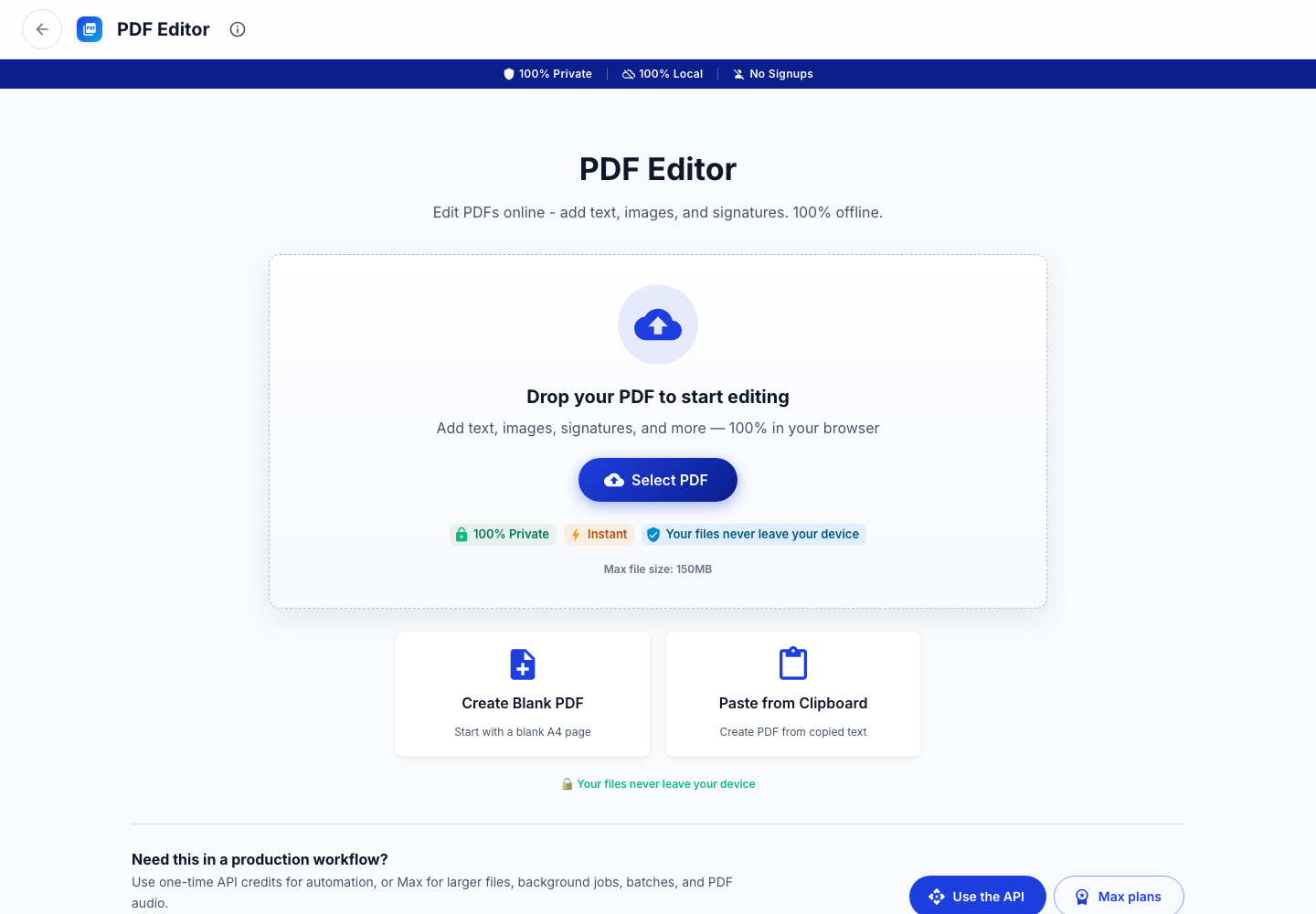
Use ExactPDF PDF Editor when you need a browser workflow for adding content over a PDF without installing a desktop editor.
An overlay is not the same as editing the original PDF text object. Whiteout-style changes can visually cover content without providing the same guarantees as true redaction. For sensitive redaction, verify that the underlying text is removed before sharing.
Method 3: Convert when the content needs rewriting
If you need to rewrite paragraphs, restructure tables, or change document flow, convert the PDF to an editable format:
Conversion is reconstruction. Complex layouts and scanned documents may need cleanup or OCR.
Capability matrix
| Need | Preview | ExactPDF | Convert to Word |
|---|---|---|---|
| Highlight and comments | Good fit | Tool-dependent | Unnecessary |
| Fill and sign | Good fit | Supported workflow | Unnecessary |
| Add overlay text or images | Basic text boxes | Better fit | Possible after conversion |
| Change existing PDF text | Not supported | Not guaranteed as native text editing | Best chance, with layout risk |
| Keep processing local | Yes | Browser-local for supported workflows | Depends on converter/editor |
Verification checklist
Local Mac workflows to use next
Most Mac PDF jobs do not stop at one edit. Use the dedicated local workflow for the next step:
Recommendation
Use Preview first for markup and signatures. Use ExactPDF when you need a no-install browser overlay or page workflow. Convert to an editable document when the source content itself must change.
Try PDF Editor
Add overlays, images, drawings, and signatures in a local browser workflow.
Open ToolFound this helpful?
❤️ Love ExactPDF? Share it with friends
Related Articles
Edit PDFs completely offline. Add text, images, signatures, and headers without an internet connection.
Introducing our new PDF Editor tool - edit PDFs directly in your browser with complete privacy.
Privilege logs need redaction before plaintext export — Smart Redact locally, then dump text.